

In This Article
A chromebook for college students who mostly write papers is a ChromeOS laptop tuned for sustained typing rather than raw horsepower: a comfortable keyboard, a glare-resistant screen, 8GB of RAM for research tabs, and enough battery to survive a full day of lectures. It trades desktop software for simplicity, Google Docs fluency, and years of automatic updates.

Picture week eleven. Three tabs of journal articles, a half-built argument about Reconstruction, and a battery icon sliding from confident green to nervous yellow. The laptop you picked in August either vanishes into the work or becomes the work. Choosing a chromebook for college students who mostly write papers isn’t a horsepower contest. It’s about keys that feel good at 1 a.m., a screen that doesn’t glare back at you, and an operating system that stays out of the way.
Here’s the encouraging part. Google’s Chromebook Plus certification set a floor: a 12th-gen Intel Core i3 or Ryzen 3 7000-series chip, 8GB of RAM, 128GB of storage, and a 1080p IPS display with a 1080p webcam. That floor quietly retired the 4GB-and-a-prayer era for anyone who lives in Google Docs.
Below you’ll find seven real models compared on keyboard, battery, display, and update runway. You’ll also get a chromebook for essay writing and research workflow guide, a reality check on picking a chromebook with long battery for lecture notes, a Google Docs offline mode walkthrough, and a plain-English look at ChromeOS auto update expiration and web based coursework.
One honest note: everything here is built from published specs and aggregated reviewer findings, not from a lab bench of my own. Where the evidence is thin, I’ll say so.
Quick Comparison: 7 Chromebooks for College Students Who Mostly Write Papers
Here’s the cheat sheet before the deep dive. Skim it, then read the analysis for the models that catch your eye.
| Model | Best For | Screen | Battery (reviewer-reported or claimed) | Price Range* |
|---|---|---|---|---|
| Lenovo Chromebook Plus 14 (OLED) | Longest endurance, premium feel | 14″ OLED touch, 1920×1200 | Up to ~17 hrs (one buying guide, best case) | $650-$800 |
| Acer Chromebook Plus Spin 714 | Premium 2-in-1, annotating PDFs | 14″ WUXGA touch | A little over 15 hrs (PCWorld comparison) | $600-$800 |
| Acer Chromebook Plus 514 | Best all-round value | 14″ 1920×1200 matte | Up to 15 hrs (manufacturer claim) | $400-$500 |
| ASUS Chromebook Plus CX34 | Typing feel and ports | 14″ Full HD | Under 8 to over 13 hrs, depending on the review | $400-$500 |
| Lenovo IdeaPad Flex 5i Chromebook Plus 14 | Flip design, bright screen | 14″ 1920×1200 touch | About 7.5 to 9 hrs | $450-$550 |
| Acer Chromebook Plus 515 | Big-screen split-window drafting | 15.6″ Full HD touch | About 8 hrs (Laptop Mag) | $350-$450 |
| Lenovo IdeaPad Slim 3 Chromebook | Tightest budget | 14″ display | Up to 13.5 hrs (maker claim, earlier generation) | $250-$400 |
*Prices are approximate ranges at the time of research and change often. Check current price before buying.
Looking at the table, the Acer Chromebook Plus 514 is the safest all-rounder for typists on a normal budget, while the Lenovo Chromebook Plus 14 (OLED) earns its premium only if endurance and update runway top your list. The ASUS Chromebook Plus CX34 carries the strongest keyboard reputation but shows the widest battery disagreement between reviewers. Budget shoppers should note that the Lenovo IdeaPad Slim 3 Chromebook isn’t marketed as Chromebook Plus in the listings I found, so only consider the 8GB configuration.
💬 Just one click — help others make better buying decisions too!😊
Top 7 Chromebooks for College Students Who Mostly Write Papers: Expert Analysis
Each model below is judged on what paper-writers actually feel: typing comfort, glare, battery, and years of updates. Ranges are approximate, so confirm current price on the listing.
1. Lenovo Chromebook Plus 14 (OLED) — marathon battery, glowing screen
Endurance is the headline. This is the laptop for students whose recurring nightmare is a dead battery with no outlet in sight. It runs MediaTek’s Kompanio Ultra 910, an Arm chip cooled without a fan, with 12GB or 16GB of RAM and UFS storage (PCWorld reviewed the 16GB/256GB version). In practice that means total silence in a library and enough muscle for a pile of research tabs. The 14-inch 1920×1200 OLED touchscreen makes black text look unreasonably crisp, although Notebookcheck flagged reflections from the glossy panel in bright rooms.
Based on the spec comparison, it’s the strongest chromebook with long battery for lecture notes in this group, provided you aren’t writing beside a sunny window. Reviewers consistently praise the display and quiet operation, and one buying guide reports roughly 17 hours of real-world use. I’d treat that as a best case rather than a promise. That guide also lists software support through June 2035, which is worth confirming on Google’s list.
Pros:
- ✅ Fanless, silent operation in quiet study spaces
- ✅ Standout OLED touchscreen for long reading sessions
- ✅ Longest reported runtime in this roundup
Cons:
- ❌ Glossy panel reflects in bright light
- ❌ Priciest option on the list
Expect roughly $650-$800 depending on configuration; steep, but the battery and update runway spread nicely across a four-year degree.
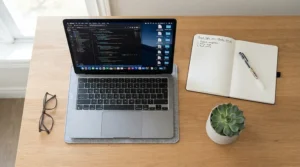
2. Acer Chromebook Plus Spin 714 — flips into a tablet for annotating readings
The hinge is the hook. Fold it flat to mark up PDFs of assigned readings, then snap back to clamshell for drafting. The configuration PCWorld reviewed pairs an Intel Core Ultra 5 115U with 8GB of RAM and 256GB of storage, a 14-inch WUXGA touchscreen, and a 1440p webcam. For you, that means smooth multitasking and sharper video for office-hours calls.
PCWorld said the keyboard truly impressed, and Laptop Mag’s measurements showed brighter, more colorful display numbers than the Plus models it compared against. RTINGS dinged it for poor reflection handling and thin-sounding speakers, so budget for headphones. On paper this is the pick for students who want one machine for typing, reading, and sketching diagrams. PCWorld logged a little over 15 hours of battery life in a comparison, and Best Buy shopper reviews often single out battery, touchscreen, and build quality.
Pros:
- ✅ Roomy, well-reviewed keyboard with generous travel
- ✅ Brighter, richer display than most Plus peers
- ✅ Sharp 1440p webcam for video calls
Cons:
- ❌ Speakers sound thin without headphones
- ❌ Screen reflects in bright rooms
Premium pricing, likely in the $600-$800 range depending on configuration; worth it only if you’ll genuinely use tablet mode.
3. Acer Chromebook Plus 514 — best value for serious typists
If you want one pick that won’t embarrass you in any scenario, start here. The 2025 refresh uses an Intel Core 3 N355 with 8GB of LPDDR5 memory and a 14-inch 1920×1200 matte IPS screen, plus, per retailer spec sheets, a 53Wh battery and backlit keyboard. Matte matters: it’s the difference between reading your thesis statement and reading your own reflection.
ITPro called the 2025 version the best budget Chromebook right now, crediting gains in battery life, performance, and screen quality over the 2023 original. That context matters, because the 2023 model drew complaints about a dim screen and mediocre battery. Make sure you’re shopping the newer configuration. Acer claims up to 15 hours, which I’d treat as a ceiling until more independent runtime numbers appear. Consumer Reports lists the earlier N305 version as supported through June 2033, another reason to verify the exact model number.
For chromebook for essay writing and research workloads, this is the sweet spot between cost, comfort, and endurance.
Pros:
- ✅ Matte 16:10 screen cuts glare
- ✅ 8GB RAM handles heavy tab loads
- ✅ Backlit keyboard for late-night drafting
Cons:
- ❌ Battery claims lack broad independent testing
- ❌ Plain plastic body
Typically in the $400-$500 range; excellent value for a Plus-tier machine.
4. ASUS Chromebook Plus CX34 — the keyboard reviewers keep praising
Reviewers can’t stop talking about the typing feel, and that matters when you’re producing a 15-page paper. PCWorld gave the 2025 refresh an Editors’ Choice nod for its keyboard, zippy performance, and wide connectivity. Trusted Reviews described a tactile layout with good travel and strong backlighting. Configurations run from Core i3 chips with 8GB of RAM up to a 16GB option, in a non-touch 14-inch Full HD panel.
The earlier review listed two USB-C, two USB-A, HDMI, and an audio jack, which spares you a dongle. Battery results disagree sharply: PCWorld logged just over 13 hours at low brightness, while RTINGS saw under eight hours of light use on the 2023 model. Reviewers also flag cheaper-feeling construction, and Expert Reviews noted that nearly everything is soldered in place, so buy the RAM you need on day one.
My read: if your hands decide your laptop, this is the one. If your outlet access is unreliable, shortlist something else.
Pros:
- ✅ Excellent keyboard travel and backlighting
- ✅ Port selection saves you from dongles
- ✅ Physical webcam shutter reported on the original
Cons:
- ❌ Battery results vary widely between reviewers
- ❌ Plastic construction feels budget
Roughly $400-$500; strong value if the keyboard sells you.
5. Lenovo IdeaPad Flex 5i Chromebook Plus 14 — bright 1200p flip screen
This one is the comfortable all-day typist’s 2-in-1. Reviewed configurations pair an Intel Core i3-1315U with 8GB of RAM and 128GB of storage behind a 14-inch 16:10 touchscreen, with a backlit chiclet keyboard and, per Tech Advisor, a fingerprint reader. Tom’s Guide praised the keyboard’s spacing and the bright touchscreen, while PCWorld said it was heavier than expected; the former measured the weight at about 3.57 pounds.
That weight is the real-world cost of the flip hinge. Battery lands in the middle: Tom’s Guide recorded just under eight hours, and PCWorld a little over nine. Honest analysis: this suits a student who writes in one-hour bursts between classes and can plug in at lunch. It’s less suited to an eight-hour lecture marathon.
Pros:
- ✅ Comfortable, backlit chiclet keyboard
- ✅ Bright touchscreen for reading and annotating
- ✅ Fingerprint reader speeds up sign-ins
Cons:
- ❌ Mid-pack battery runtime
- ❌ Heavier than a clamshell of similar size
Approximately $450-$550; fair value if you’ll use the flip.

6. Acer Chromebook Plus 515 — 15.6-inch canvas for split-screen drafting
Bigger glass means bigger drafting space. The 15.6-inch Full HD IPS touchscreen comfortably fits a Google Doc beside a journal article with no squinting. Typical configurations use an Intel Core i3-1215U, 8GB of RAM, and 128GB of SSD storage, and some variants step up to i5 chips. Reviewers describe it as quick, with dozens of tabs opening without hesitation on the i5 version.
The trade-offs are real. Laptop Mag averaged 8 hours 21 minutes of battery, below the Chromebook average of 9 hours 50 minutes it cited, and the same outlet’s comparisons showed a dimmer, less colorful screen than the Acer Chromebook Plus Spin 714. At about 3.7 pounds it’s a desk-and-backpack machine, not a pocket companion. For a student who writes mostly in one location, it’s a sensible, roomy value pick. Availability and exact configurations vary by retailer, so confirm the model number.
Pros:
- ✅ Large screen suits side-by-side windows
- ✅ Snappy performance for everyday research
- ✅ Often priced below 14-inch Plus rivals
Cons:
- ❌ Battery trails the Chromebook average
- ❌ Dim, washed-out display versus premium peers
Likely $350-$450; good value for desk-bound writers.
7. Lenovo IdeaPad Slim 3 Chromebook — budget pick with a surprisingly good display
Lenovo refreshed this long-running budget favorite in 2026 with MediaTek’s Kompanio 540 chip. Chrome Unboxed called the display the star of the show and noted upward-firing speakers. It’s offered in 4GB/64GB and 8GB/128GB configurations. Lenovo has touted up to 13.5 hours of battery on an earlier generation, so treat that as a ballpark until new runtime tests arrive.
My advice is blunt: skip the 4GB version. A research session with a dozen tabs, a PDF, and a video call will feel cramped, and the whole point of a chromebook with long battery for lecture notes is that it stays responsive at 4 p.m. The 8GB model is the one to consider. Check the exact ChromeOS auto update expiration listed for the model before buying, since this is a newly refreshed platform.
Pros:
- ✅ Display outperforms its price tier
- ✅ Light, easy to carry between classes
- ✅ Lowest entry cost on this list
Cons:
- ❌ 4GB configuration struggles with research tabs
- ❌ Below Chromebook Plus performance
Roughly $250-$400 depending on RAM, storage, and retailer promotions.
How to Choose a Chromebook for College Students Who Mostly Write Papers
Short answer: pick the keyboard and screen first, then confirm RAM, battery, and update date. Here’s the order I’d follow.
- Test the typing feel. Look for generous key travel and a backlight. You’ll type tens of thousands of words, so a mushy deck costs you more than a slow processor ever will.
- Insist on 8GB of RAM. Chromebook Plus models start there, and research tabs eat memory fast.
- Choose a matte screen around 300 nits. A 16:10 ratio also gives you more lines of text on screen.
- Look for measured battery above 10 hours. Ignore claims; read independent runtimes, especially if you want a chromebook with long battery for lecture notes.
- Verify the update date. Check Google’s list for ChromeOS auto update expiration on the exact model number.
- Match size to your routine. Commuters should favor 14-inch models under about 3.5 pounds; desk-bound writers can go 15.6 inches.
- Confirm course software. Ask your department about required web based coursework tools and proctoring software before you buy.

Chromebook for Essay Writing and Research: What Your Workload Actually Demands
Let’s translate the specs into a typical Tuesday. A chromebook for essay writing and research usually runs one Google Doc, a library database, two or three journal PDFs, a citation tool, a music tab, and maybe a video call. That’s 15 to 30 tabs, and memory pressure rises with every one.
This is why 8GB of RAM matters more than a faster processor. A fast chip with 4GB feels like a sports car stuck in traffic. The Chromebook Plus models above keep tabs alive instead of reloading them, which protects your place in a source.
Screen real estate matters nearly as much. A 14-inch 16:10 display fits a doc and a reading side by side, while a 15.6-inch panel like the one on the Acer Chromebook Plus 515 gives that split more breathing room. Touchscreens are optional, but they’re handy for scrolling PDFs.
For web based coursework, everything from the learning platform to submission portals runs in Chrome, so a quality browser machine is genuinely the right tool. Pair it with Google Docs offline mode and your drafts survive a dead Wi-Fi spell. Finally, remember Docs exports to Word and PDF formats, which covers most professor requests. If your instructor demands tracked-change compatibility, test a sample export early.
Chromebook With Long Battery for Lecture Notes: The Runtime Reality Check
Battery claims are the marketing equivalent of “fun-size” candy bars. Manufacturers measure under gentle conditions, and independent reviewers use different tests, which is why the ASUS Chromebook Plus CX34 shows results from under eight hours to over thirteen. Laptop Mag put the typical Chromebook average at 9 hours 50 minutes, which is a useful yardstick: anything meaningfully above it is a true chromebook with long battery for lecture notes.
A practical rule of thumb: if you attend classes from 9 to 4, you want a measured 10 or more hours so the laptop finishes the day with a cushion. By that standard, the Lenovo Chromebook Plus 14 and Acer Chromebook Plus Spin 714 lead the group on reported numbers, while the Lenovo IdeaPad Flex 5i and Acer Chromebook Plus 515 are better for students who can charge midday.
Four habits stretch any battery:
- Drop brightness to a comfortable 50 to 60 percent.
- Close video tabs you aren’t watching.
- Use battery saver in the afternoon slump.
- Carry a USB-C charger in your bag.
Pair a long-lasting laptop with Google Docs offline mode and you can capture notes in a basement lecture hall with no signal at all.
Google Docs Offline Mode: A Setup Guide for Dead Wi-Fi and Packed Lecture Halls
Google Docs offline mode is the unglamorous feature that rescues your semester. Nobody wants to discover in the middle of a lecture that a paper draft is unreachable. Set it up once, while you’re online.
- Open Google Drive in Chrome and go to Settings, then check the Offline box. Setup requires a connection, so don’t wait until you’re stranded.
- Install and turn on the Google Docs Offline extension if Chrome prompts you.
- Open the documents you’ll need and choose File, then Make available offline.
- When you lose signal, look for the lightning bolt icon, which confirms you’re editing offline.
- Reconnect later and your changes sync automatically.
Google’s own offline help page says you need Chrome or Edge, should avoid private browsing, and must leave enough storage space. It works for Docs, Sheets, and Slides but not Forms. Common first-month mistakes include working in an incognito window, skipping the setup step, and assuming every file is offline automatically. Open one test document in airplane mode before finals week, not during it.
Real-World Scenarios: Three Student Profiles, Three Picks
These are composite profiles, not real people, but they show how the reasoning works.
The commuter English major. She spends 40 minutes on a bus each way, writes long essays, and has about $450 to spend. A matte screen and a keyboard that survives marathon sessions matter most. The Acer Chromebook Plus 514 fits, with the ASUS Chromebook Plus CX34 as the typist’s alternative. She sets up Google Docs offline mode for the bus.
The nursing student who annotates. He reads dense PDFs and handwrites diagrams, with a budget around $550. Tablet mode earns its keep, so the Acer Chromebook Plus Spin 714 or Lenovo IdeaPad Flex 5i makes sense. The bright touchscreen helps, and midday charging is manageable.
The thesis writer at a desk. She works six hours at one table and rarely travels. A big screen beats portability, so the Acer Chromebook Plus 515 gives her a 15.6-inch workspace without premium pricing.
Quick decision framework: if battery rules, choose the Lenovo Chromebook Plus 14; if cost rules, choose the 8GB Lenovo IdeaPad Slim 3 Chromebook; if typing rules, choose the ASUS Chromebook Plus CX34.
✨ Don’t Miss These Exclusive Deals!
🔍 Take your college writing setup to the next level with these carefully selected picks. Click on any highlighted item to check current pricing and availability. These laptops will help you turn late-night drafts into papers you’re proud of!
Five Common Problems and How to Solve Them
Every semester brings the same handful of headaches. Here’s the fix for each.
Problem 1: The battery dies by 3 p.m. Lower brightness, close idle tabs, and carry a USB-C charger. Longer term, shop for a measured 10 hours or more.
Problem 2: Wi-Fi vanishes in the lecture hall. Turn on Google Docs offline mode ahead of time and open your key files so they’re cached.
Problem 3: Too many tabs make the browser crawl. Press Search plus Esc to open ChromeOS Task Manager and close the heaviest tab. Chronic slowdowns point to a 4GB machine like the entry Lenovo IdeaPad Slim 3 Chromebook configuration.
Problem 4: Where is Caps Lock? Chromebooks put a Search key where it usually lives. Press Alt plus Search to toggle Caps Lock.
Problem 5: A proctored exam won’t launch. Install the required browser extension early and confirm your ChromeOS is current. More on that in the web based coursework section below.

ChromeOS Auto Update Expiration: The Spec Nobody Prints on the Box
ChromeOS auto update expiration is the date after which Google stops sending security patches and new features to your model. The laptop keeps working, but it becomes a slow-motion liability. Google’s own update schedule page explains that after a final update, existing features may stop working, and apps that require current ChromeOS or browser versions may stop being supported.
The good news is the policy is generous. Google announced in 2023 that Chromebooks released from 2021 onward get 10 years of automatic updates, counted from the hardware platform’s first release, not from the day you buy. You can check your own device under Settings, About ChromeOS, Additional details, then the Update schedule section.
That platform-release rule creates traps. One aggregator lists one Acer Chromebook 314 variant with a June 2027 expiration and another with June 2029, which could land mid-degree for a 2026 freshman. By contrast, one buying guide lists the Lenovo Chromebook Plus 14 through June 2035, and Consumer Reports lists an earlier Acer Chromebook Plus 514 version through June 2033. Treat aggregator dates as hints and confirm on Google’s list.
Web Based Coursework: What Works and What Breaks on ChromeOS
Most web based coursework is built for a browser, which is a Chromebook’s home turf. Learning management systems, Google Workspace, Microsoft 365’s web apps, and video calls generally run fine. The friction comes from proctoring tools and desktop-only software.
Take Respondus LockDown Browser. On a Chromebook it runs as a browser extension rather than a standalone app, and the University of New Hampshire’s overview notes that it requires the ChromeOS version available through Google’s Long Term Support channel. Other campuses document limitations: calculator and spreadsheet features aren’t supported, and instructors may need to enable Chromebook use per exam. Managed or school-issued devices can block installation, so involve campus IT early.
Practical steps: ask which exam software each course requires, install extensions a week ahead, and keep ChromeOS updated. For desktop-only programs like advanced statistics or design suites, check your department’s required software list before buying any Chromebook. A browser machine is a superb fit for writing-heavy majors, but the exceptions are real.
Chromebook vs Windows Laptop vs MacBook for Writing Papers
Here’s the honest trade-off for a paper-heavy workload.
| Factor | Chromebook | Windows laptop | MacBook-class laptop |
|---|---|---|---|
| Typical cost tier | Lowest | Low to high | Highest |
| Battery for writing | Often long, varies by model | Varies widely | Typically strong |
| Software | Browser and Android apps | Full desktop apps | Full desktop apps |
| Updates | Fixed end date per model | Long, ongoing | Long, ongoing |
| Best for | Docs, web research, notes | Specialized software needs | Premium all-rounder |
Looking at the table, a Chromebook wins on simplicity and cost when your day is Docs, library databases, and web based coursework. A Windows laptop becomes the better choice when your major demands desktop-only software, and a MacBook-class machine suits students who want a premium device regardless of price. The Chromebook’s weakness is its fixed support window, which is why ChromeOS auto update expiration deserves a minute of your attention before you buy.
Features That Actually Matter (and Those That Don’t)
Marketing loves to dazzle you. Writers need a shorter list.
What matters:
- Keyboard travel and backlighting
- A matte or low-reflection screen with solid brightness
- 8GB of RAM
- A long update runway
- USB-C charging
- A decent webcam for office hours
What doesn’t:
- Gaming-style graphics, which drain battery for no writing benefit
- Huge local storage, since Drive handles the cloud (though remember to enable Google Docs offline mode for what you’ll need)
- 4K panels, which cost battery life without improving text work
- AI add-ons, which are pleasant extras at best
A word on that last one: check your school’s academic integrity policy before leaning on any writing assistant. Touchscreens are optional unless you annotate PDFs.
One more example of marketing versus reality: the glossy OLED on the Lenovo Chromebook Plus 14 looks gorgeous in a dim dorm room and fights reflections near windows. If your chromebook for essay writing and research duties happen in a sunlit library, the matte screen on the Acer Chromebook Plus 514 may serve you better. Always decide by environment, not by spec-sheet bragging rights.
Long-Term Cost & Maintenance: What a Four-Year Chromebook Really Costs
Think in cost per year, not sticker price. A machine in the $400-$500 range that lasts four years costs roughly $100-$125 per year. A $250 laptop replaced after two years can work out about the same or worse, plus you pay again in hassle.
| Tier | Models | Typical Range | Best For |
|---|---|---|---|
| Budget | Lenovo IdeaPad Slim 3 Chromebook | $250-$400 | Tight budgets, light research |
| Mid | Acer Chromebook Plus 514, ASUS Chromebook Plus CX34, Acer Chromebook Plus 515 | $350-$500 | Daily writing, best value |
| Premium | Lenovo Chromebook Plus 14, Acer Chromebook Plus Spin 714 | $600-$800 | Battery, display, flexibility |
The mid tier delivers the best balance for most paper-heavy majors, while the premium tier pays off only if you’ll use the endurance or tablet mode. Budget buyers should balance low price against the risk of a 4GB machine feeling slow by junior year.
Maintenance is simple. Restart weekly so updates install, keep work backed up in Drive, use a sleeve to avoid screen damage, and note that the ASUS Chromebook Plus CX34 is largely soldered, so you can’t add memory later. Warranties are often one year, so register your purchase. Before you buy used or renewed, check ChromeOS auto update expiration, because a cheap laptop with months of support left isn’t a bargain.

Frequently Asked Questions About a Chromebook for College Students Who Mostly Write Papers
❓ Are Chromebook Plus models worth the extra money over a budget Chromebook?
❓ Can I use Microsoft Word on a Chromebook for college papers?
❓ Is a refurbished Chromebook safe to buy for college?
❓ Should I pay extra for a touchscreen or a 2-in-1 Chromebook?
❓ How much RAM does a Chromebook need for essay writing with many research tabs?
Final Verdict: Choosing Your Chromebook for College Students Who Mostly Write Papers
Here’s the bottom line. For most students, the Acer Chromebook Plus 514 is the smartest starting point: matte screen, 8GB of RAM, backlit keyboard, and a price that won’t make you flinch. If your priority is a chromebook with long battery for lecture notes and a screen that makes black text sing, the Lenovo Chromebook Plus 14 (OLED) is the premium option. Typists who live by feel should try the ASUS Chromebook Plus CX34, and the 8GB Lenovo IdeaPad Slim 3 Chromebook is the budget route.
Before you click anything, run the three-minute checklist: read independent battery numbers, look up the model’s ChromeOS auto update expiration, and ask your department about proctoring tools and web based coursework requirements. Set up Google Docs offline mode on day one, so a flaky connection never costs you a draft.
A good chromebook for college students who mostly write papers disappears into the work, and the right pick above will do exactly that.
Recommended for You
- [Add your blog post link 1]
- [Add your blog post link 2]
- [Add your blog post link 3]
Disclaimer: This article contains affiliate links. As an Amazon Associate, I earn from qualifying purchases. If you purchase products through these links, we may earn a small commission at no additional cost to you.
✨ Found this helpful? Share it with your friends! 💬🤗
